iPhone · iOS 26
Line up your after photo with your before.
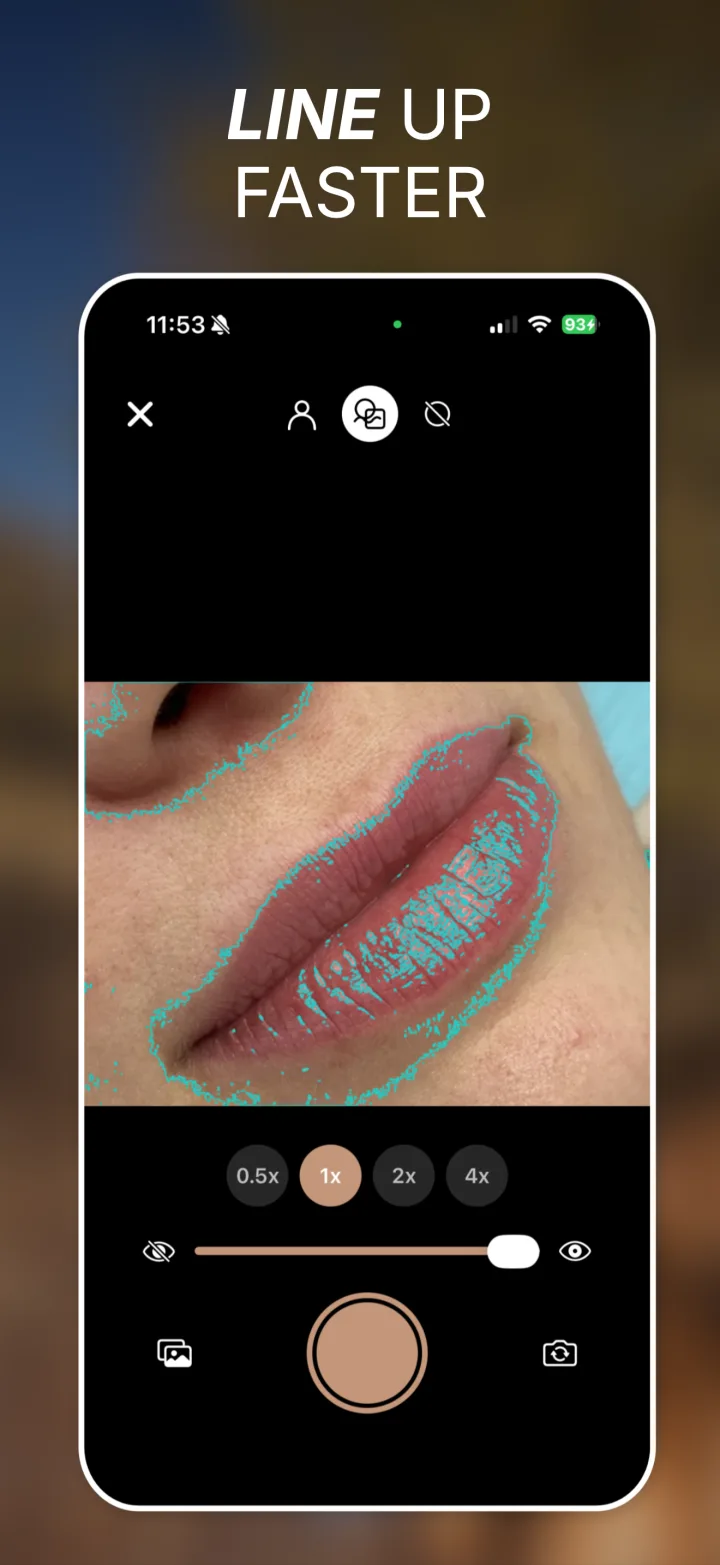
Progress photos only tell the story if they match. Pose Perfect Pro ghosts your original photo over the camera viewfinder, so you fix your pose, angle and framing before you press the shutter.
No account. No subscription. Nothing leaves your phone.
Four steps, about a minute
- 1
Pick your before
Choose the original from your photo library.
- 2
It traces the subject
On-device Vision detection outlines what matters.
- 3
Match the outline
Move until your pose sits inside the guide, then shoot.
- 4
Export
Save the after, a side-by-side, or a reveal video.
Alignment tools that actually help
Everything here exists to solve one problem: making the second photo match the first.
Live ghost overlay
Your before photo sits translucent on the viewfinder. An opacity slider takes it from a faint hint to a full double exposure — whatever helps you line up.
Two outline modes
Person Silhouette isolates the subject so you match your body, not the background. Vision Contours traces edges across the whole frame for rooms, gardens and renovations.
Pick the same lens
Ultra-wide, wide, telephoto. Focal length changes perspective more than anything else, so shooting the follow-up on the lens you used originally matters most.
Self-timer with countdown
Shooting yourself on the front camera? Start the timer, get back into position, and let the countdown handle the rest.
Aspect ratio matched
Your after shot is cropped automatically to the exact proportions of your before photo, so the pair always lines up in every export.
Or import an after
Already have both photos? Bring the second one in from your library and it gets aligned and cropped the same way as a captured shot.
Export it four ways
One tap each, saved straight to your photo library.
- After photo — The aligned shot on its own.
- Side-by-side — A labeled composite, BEFORE and AFTER.
- Reveal ↔ — Animated video with a horizontal wipe.
- Reveal ↕ — Animated video with a vertical wipe.
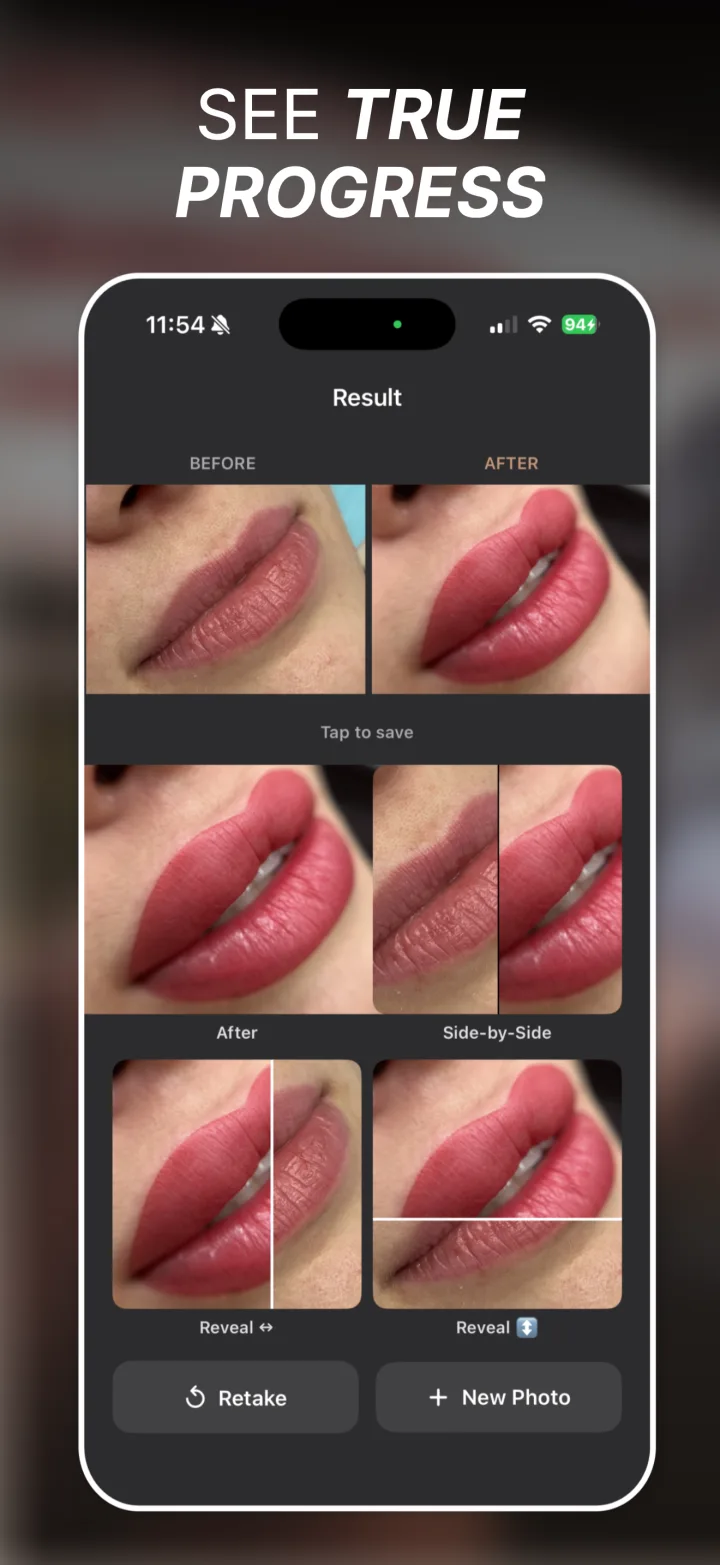
Actual exports from the app
Nothing below is retouched or mocked up. Each one was saved straight to the photo library from a real session.
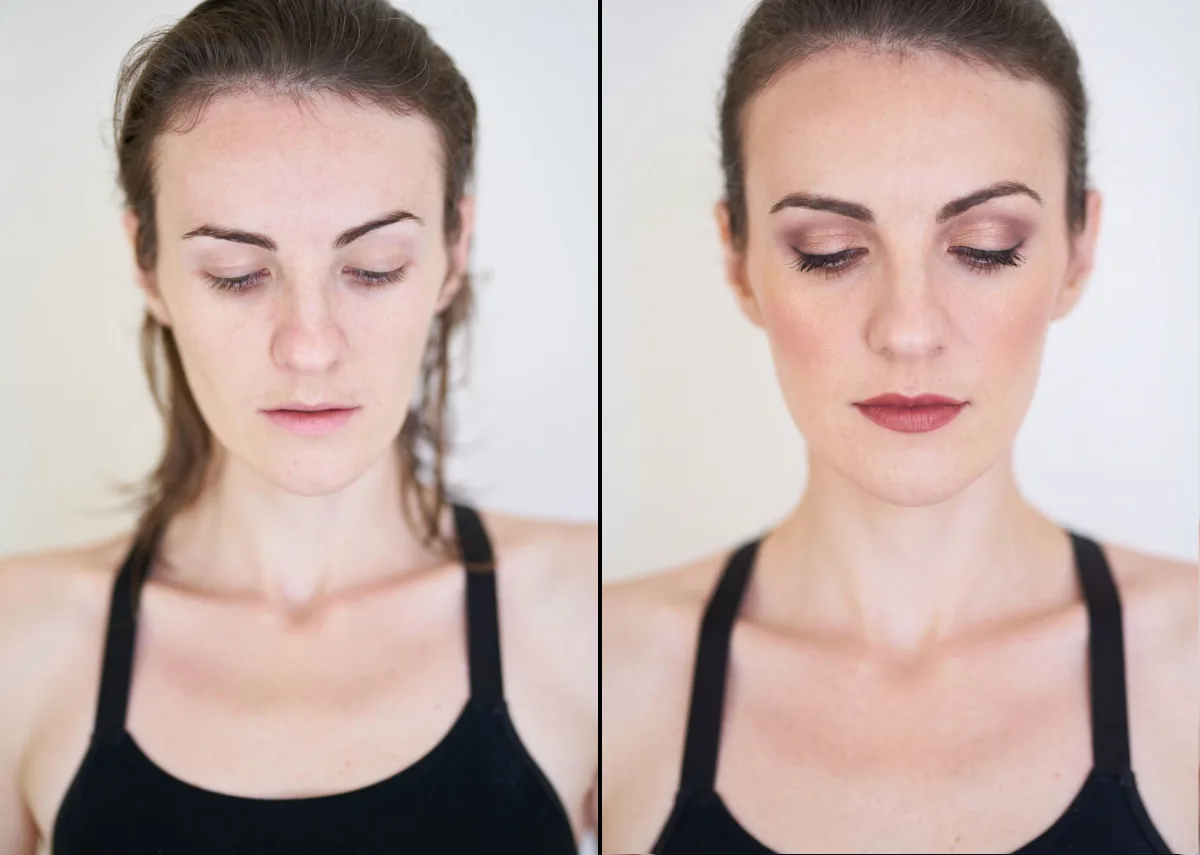
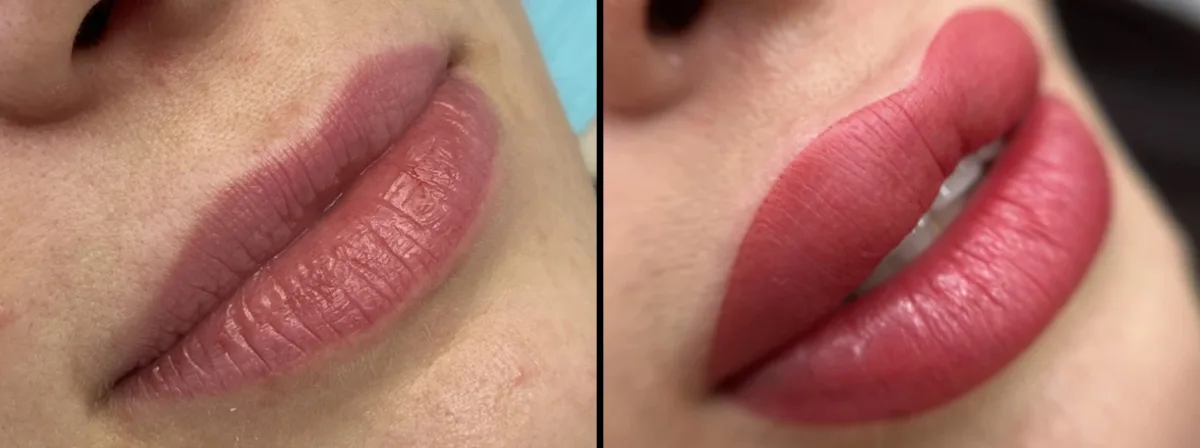
Reveal videos
Your photos never leave your phone
Outline detection, cropping, the side-by-side composite and the reveal video are all rendered on device with Apple’s Vision, Core Image and AVFoundation frameworks. No photo, and nothing derived from a photo, is uploaded — there is no server to upload it to.
Read the privacy policyBuilt for anything that changes slowly
- Aesthetic and cosmetic treatments
- Fitness and body transformations
- Hair growth and restoration
- Skincare routines
- Makeup and styling
- Home renovations
- Garden and plant growth
- Physical therapy progress
Questions
- How does Pose Perfect Pro line up my photos?
- It shows your before photo as a translucent overlay directly on the live camera view, and traces the subject as an outline on top. You move until your pose matches the outline, then shoot. An opacity slider controls how strongly the before photo shows through.
- Do my photos get uploaded anywhere?
- No. Every step — outline detection, cropping, the side-by-side composite and the reveal video — runs on your iPhone using Apple’s Vision, Core Image and AVFoundation frameworks. No photo, and nothing derived from a photo, is sent off the device.
- Does it work for things other than people?
- Yes. Person Silhouette mode isolates a person, but Vision Contours mode traces edges across the whole frame, which suits rooms, renovations, gardens, restoration projects and any other subject without a person in it.
- Can I use a photo I already took as the after shot?
- Yes. Instead of capturing, you can pick an existing photo from your library and Pose Perfect Pro crops it to the before photo’s aspect ratio so the pair still lines up in every export.
- What can I export?
- Four things: the after photo on its own, a labeled side-by-side composite, and an animated reveal video with either a horizontal or a vertical wipe. Each saves straight to your photo library.
- Why does matching the lens matter?
- Focal length changes perspective. An ultra-wide shot and a telephoto shot of the same subject look like different bodies or different rooms. Pose Perfect Pro lets you pick the same lens you used originally, which does more for a convincing match than anything else.